GaitPilot Coach Guide: Live Biomechanics & Command Center
Welcome to the GaitPilot Coach Guide. This guide is written specifically for running coaches, physical therapists, biomechanics specialists, and personal trainers who monitor athletes in real time using the GaitPilot mobile app and live web telemetry.
🏃 What Is Your Role as a Coach?
While a Guardian focuses on safety, location tracking, and emergency watchdog alerts, a Coach focuses on athletic performance, form optimization, injury prevention, and real-time biomechanical analysis.
You do not need to install any app. You can follow the athlete's live workout directly from any web browser on your laptop, desktop, tablet, smartphone, or big-screen smart TV (such as Google TV).
Through the high-resolution GaitPilot Coach Command Center, you can: * Monitor Live Biomechanics: Inspect real-time bilateral gait metrics including Gait Symmetry Index, Left/Right Ground Contact Time (GCT), Cadence vs. Target Pacing, and Foot Strike Impact forces. * Stream to Smart Displays & Google TV: Experience a wide 16:9 dashboard with large dials and telemetry cards designed for big screens and living room hubs. * Remote Live Audio Drill Cues: Tap one-click tactical cue chips or send custom form feedback that speaks directly into the athlete's earbuds within milliseconds. * Hands-Free Voice Communication: Receive spoken replies transcribed back to your command center chat in real time without the athlete breaking their stride. * GPS & Route Context: Keep an eye on current terrain, elevation, and speed to correlate form breakdown with course difficulty and fatigue.
🔒 Athlete-Controlled Session Access
Live streaming across the coaching command center operates under strict athlete sovereignty:
* Walker-Initiated Streaming: A coach cannot start a session, wake up devices, or view live metrics until the walker presses START on their mobile app.
* Exclusive Session Links: The coach dashboard connects exclusively via a unique, encrypted session room link generated by the walker's phone and shared directly with the coach.
* Role-Locked Experience: Your coaching link automatically locks the dashboard to the Coach Command Center (bilateral biomechanics, cadence pacer, and audio drill cue dispatcher). The view is locked strictly to coaching, ensuring technical cues remain separate from guardian safety alerts.
* Automatic Termination on Finish or Discard: When the walker finishes or discards their workout in the mobile app—whether from active walking or while paused—the live telemetry broadcast terminates immediately. Connected dashboards are sealed with SESSION COMPLETED and drill cue dispatch is locked.
🖥️ Responsive Command Center & Google TV Display
The Coach Command Center automatically adapts to the screen size where you view it:
1. Big-Screen & Google TV 16:9 Layout
When viewed on a smart TV, monitor, or tablet in landscape mode, the interface splits into an expansive multi-column command center: * Left Column: Interactive dark-mode satellite map with real-time speed, elevation, and location tracking. * Right Column: Dedicated Coach Biomechanics Command Deck, Target Cadence dial, Bilateral Footstrike cards, and Quick Coaching Audio Cue chips.
2. Universal Smart Display & TV Companion (gaitpilot.com/tv)
Coaches and followers can turn any television or smart display into a dedicated Live Coach Command Center with zero installation:
* Open gaitpilot.com/tv: Open the web browser on any Google TV, Samsung Smart TV, LG TV, Fire TV, iPad, or monitor and navigate to https://gaitpilot.com/tv.
* One-Time 4-Digit Code Link: The TV displays a glowing 4-digit code. In the athlete's GaitPilot mobile app, open Settings → Link TV / Smart Display and enter the code. The athlete can also assign an optional screen nickname (e.g. "Coach Living Room Display").
* Automatic Cloud Wake: When the athlete begins their walk, the TV automatically wakes up into the 16:9 Coach Command Center. The coach can inspect real-time symmetry dials and send audio drill cues from anywhere.
* Global Remote Coaching: There are zero geographic distance limits. A coach located anywhere across the globe (e.g. across continents in South Africa) can stream the athlete's walk live by simply opening their web dashboard link or pairing their local smart TV via the 4-digit code.
* Independent Cloud Streaming: The TV connects directly to GaitPilot's Cloud Run relay via secure WebSockets. The athlete can start walking, head miles away on cellular data, and the coach's screen continues updating independently in real time.
* Multi-Screen Inventory Management: Athletes can link multiple displays simultaneously across different venues—such as a living room display, trackside tablet, and desk monitor. From the app's Linked Screens deck, the athlete can review active screens, check connection status, and disconnect any individual screen with a single tap.
📊 Reading the Biomechanics Dials
The Coach Command Center translates complex raw sensor data from the athlete's phone, smart shoes, and wearables into actionable coaching indicators:
1. Form Symmetry Dial (0–100%)
- Green (95%–100%): Optimal bilateral balance. Force and timing are evenly distributed across both legs.
- Amber (85%–94%): Mild asymmetry detected. Often indicates early fatigue, subtle limp, or uneven road camber.
- Crimson (Below 85%): Pronounced asymmetry. Prompt the athlete to check their stride or consider ending the session to prevent strain or injury.
2. Cadence Pacing Gauge & Deterministic Source Sourcing
- Direct Alignment with Athlete's Configured Source: The primary cadence shown on the Coach Command Center directly reflects the athlete's explicitly selected Cadence Source (e.g.
Lower Body / Feetground truth,Sacrumbelt, orWrists) as set on their phone. - Instantaneous Live Pacing vs. Session Average: The gauge displays the athlete's instantaneous step turnover at that exact moment (e.g. 102 SPM or 120 SPM) and highlights the delta against their configured target cadence. Post-session summaries, by contrast, display the cumulative average cadence over the full workout.
- Harmonic Decimation Protection: When the athlete is wearing foot sensors, the native engine anchors sacral measurements to physical foot ground contact, preventing elastic belt bounce from reporting false harmonic doublings.
3. Guaranteed Core Trip Badge & Responsive 3-Column Metric Grid
- Guaranteed Mileage & Duration Badge: The top navigation bar features a prominent, high-contrast header badge displaying live Trip Distance (Miles) and Moving Duration (MM:SS), guaranteed to transmit on every update regardless of custom user metric presets.
- Responsive 3-Column Grid: Secondary live metrics (Speed, Heart Rate, Bilateral Foot Angles, Vertical Oscillation) wrap cleanly into a flexible 3-column deck that automatically formats to laptops, tablets, phones, and ultra-wide Google TV displays without horizontal scrollbars or clipping.
- Zero Clutter: Internal software status flags (
walking_mode,is_paused,session_status) are cleanly filtered from the card deck, keeping the display focused on vital bio-signals.
4. Left vs. Right Ground Contact Time (GCT)
- Measures the duration (in milliseconds) each foot spends in contact with the ground during each stance phase.
- Helps identify unilateral over-striding, dragging, or early fatigue on one side.
5. Foot Strike Impact Force (G-Forces)
- Displays peak vertical deceleration at initial contact for left and right feet.
- Useful for diagnosing foot slap, heavy heel striking, or asymmetric joint loading.
🎙️ Remote Audio Coaching Cues (Earbud Delivery)
Coaching is most effective when feedback is immediate. The Coach Command Center enables real-time acoustic drill delivery:
1. One-Tap Quick Cue Chips
Tap any of the pre-configured coach cue chips to instantly transmit an audio drill directly into the athlete's earbuds:
* Target Cadence! ⚡: Prompts the runner to match their rhythm to the target cadence.
* Check Foot Slap! 🦶: Alerts the runner if asymmetrical or heavy ground impact is detected.
* Stand Tall 🧘: Reminds the runner to maintain upright posture and open the chest.
* Equal Push-off ⚖️: Encourages balanced propulsion from both feet.
* Push the Pace! 🏃: Motivational cue for interval bursts.
* Relax Shoulders 😌: Relieves upper-body tension and optimizes arm carriage.
2. Custom Coaching Text-to-Speech
You can type custom instructions into the chat field (e.g., "Take smaller steps up this incline" or "Focus on soft landings"). GaitPilot's audio sonification engine pauses background music or pacing metronomes, speaks your cue clearly into the runner's headphones, and restores background sonification seamlessly.
3. Hands-Free Athlete Voice Replies (Dedicated Coach Channel)
- Strict Channel Isolation: Your coaching cues and the athlete's voice replies route exclusively through the private Coach Channel. Guardians monitoring the athlete's safety dashboard never see your coaching dialogue, and you will not see guardian messages.
- Top-Priority Acoustic Channel: In GaitPilot's audio prioritization hierarchy, live communications from you as the human coach take top priority over automated metric alerts. When you send a message, any automated verbal cue or metronome ducks immediately so your guidance is heard clearly and without delay.
- When your cue finishes speaking, the athlete hears "Coach says: [Your Message]. Say your reply now." followed by a soft chime.
- The athlete has a 4-second listening window to speak their reply hands-free without touching their phone. Their voice routes directly back to the Coach Channel and appears immediately in your dashboard feed:
Coach: "Check Foot Slap on the left!"
Athlete: "Got it, adjusting my midfoot landing now."
📶 Connection Resilience, Pauses & Offline Recovery
During real-world outdoor training, cellular coverage may fluctuate. GaitPilot provides predictable, transparent states so coaches always know the athlete's exact status:
1. Athlete Pauses the Workout (WALK PAUSED)
- What you see: If the athlete pauses their workout (e.g., stretching, hydrating, or awaiting instructions at a trackside bench), the dashboard status dot turns cyan/sky blue and displays
WALK PAUSED. - Coaching Tools Remain Active: The live map, current heart rate, and two-way coaching chat remain fully operational. You can continue sending drill cues or tactical advice.
- Watchdogs: Inactivity alarms are suspended during pauses to avoid false alarms while resting, while high-G fall detection remains actively armed.
2. Cellular Dead Zones & Tunnels (SIGNAL PAUSED)
- 15-Second Detection: If the athlete enters a tunnel, wooded trail, or cellular dead zone where data is interrupted for over 15 seconds, the status badge turns amber and displays
SIGNAL PAUSED (X ago). - Frozen Context: The course map freezes on the athlete's last known GPS location, and biomechanical dials retain their last valid readings.
- Queued Drill Cues: Any coaching cues you dispatch while the athlete is disconnected are safely held in cloud memory.
- Automatic Catch-Up: Within 2 seconds of the athlete regaining cellular data, the command center returns to green
LIVE, updates their path, and delivers your queued voice drill cues directly into their earbuds.
3. Session Conclusion vs. Battery Depletion
- Normal Finish or Discard (Active or Paused): The moment the athlete concludes their walk (via Save or Discard in the mobile app—including when tapped from a paused workout—or by voice command "finish walk"), the live telemetry feed terminates immediately. The dashboard displays
SESSION COMPLETEDwith an immutable summary card (distance, duration, cadence, steps), and coaching cue dispatch is locked. - Dead Battery / Crash Expiry (20-Minute Hard Timeout): If the athlete's phone battery dies or the app closes unexpectedly mid-workout, the dashboard holds the last known state in
SIGNAL PAUSEDfor 20 minutes before automatically marking the sessionSESSION EXPIREDand closing the room.
⚙️ Setting Up Coach Telemetry in the Mobile App
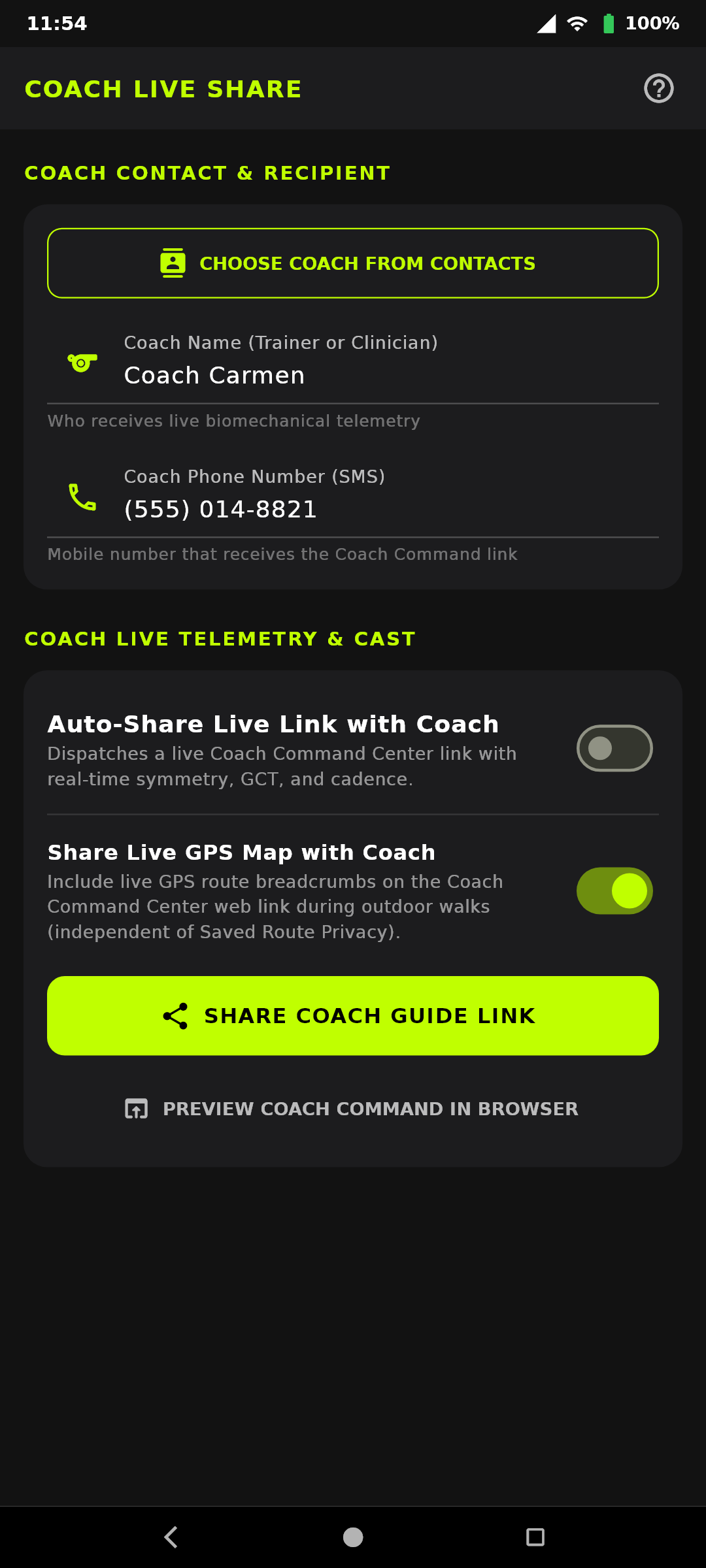
For athletes configuring their coach:
- Open the GaitPilot app on your phone.
- Tap Connected Companions → Coach Live Share in Settings (or tap the Coach Live Share (
📡) icon on the top AppBar). - Tap Select Coach Contact to choose your coach from your phone's address book (only your coach's first name is saved in session reports; their phone number stays strictly on your phone for SMS invitations).
- Turn on Auto-Share Live Link if you want GaitPilot to automatically open your SMS app with your live coach link whenever a tracked session starts.
- Toggle Share Live GPS Map with Coach ON or OFF (as a dependent option under live sharing) to choose whether your live Coach Command Center displays your real-time GPS route map or biomechanics-only telemetry.
- Tap Share Coach Guide Link to text this user guide to your coach ahead of time.
- Tap TV Companion (in Settings → Connected Companions or on the top AppBar) to pair your living room Google TV, trackside iPad, or coach's screen with a 4-digit code.
[!NOTE] Shared Infrastructure with Guardian Safety Both Coach Live Telemetry and Guardian Safety share GaitPilot's unified Cloud Run relay, WebSocket streaming engine, and TV Companion pairing infrastructure. For details on caregiver monitoring, emergency fall sirens, and turn-by-turn rescue directions, consult the Guardian Safety Guide.
♿ Screen Reader Accessibility (VoiceOver, TalkBack, NVDA)
The Coach Live Dashboard (gaitpilot.com/live) is engineered for rapid, accessible operation across mobile, tablet, and desktop screen readers:
* Interactive-First Order: Tactical drill cue chips ("Target Cadence! ⚡", "Check Foot Slap! 🦶", "Stand Tall 🧘") and two-way coaching chat are positioned first at the top of the dashboard. Coaches can dispatch instructions in 1–2 swipes or keypresses without traversing passive metrics.
* Unified Biomechanics Card: Biomechanical indicators (Symmetry score, Cadence pacing, Ground contact time balance, Impact shock force) are consolidated into a single focusable card (#coach-biomechanics-panel) with dynamic, human-friendly speech announcements, eliminating fragmented "bit-by-bit" reading.
* Zero "Article" Clutter: Eliminates HTML role="article" across the interface to prevent noisy and repetitive screen reader announcements.
🔒 Security & Privacy
- Direct Encrypted Rooms: All live telemetry streams over TLS 1.3 / WSS using high-entropy private tokens.
- First-Name-Only & Masked Sensor IDs: Only first names are displayed or stored, phone numbers never leave the athlete's device, and external WT901 Bluetooth MAC addresses are masked to
WT901-XXXX. - No Video/Audio Eavesdropping: The connection transmits telemetry metrics and discrete coaching messages only; microphone listening is strictly limited to 5-second reply windows initiated by received messages.
- Session Purge: When the athlete taps End Workout, the session room is closed and telemetry buffers are immediately cleared.